




Disable Services through Windows

How to disable Services Status through Registry in Windows

Registry Workaround for Services Status Type

Dr. William Sen / LebenUSA

by Dr. William Sen

Using the Services feature in Windows is not always the best way to go. For reasons unknown, Windows will deny you the possibility to change the status of some services.

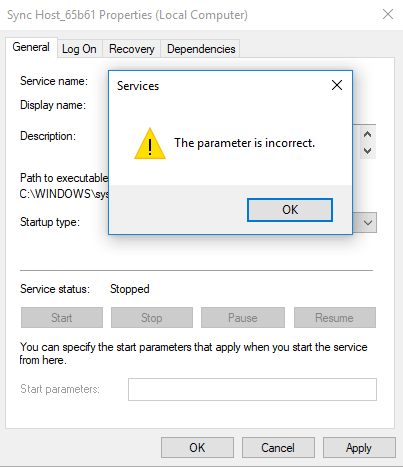
You may have experienced this error message:

The parameter is incorrect
Error-Message "The parameter is incorrent" in Windows when trying to change or disable the services status.

Anyways, I have coded a tool that will allow you to disable Service entries anyways, you can download it below:

But if you want to do it manually without using my tool, read on. I will explain how you can do this through the registry on your own:

Let’s bypass the services editor and try to change the status of a service trough the registry using “regedit”.

Here is how it’s done. Go to your menu and start “regedit” by typing it in. Locate this:

Computer\HKEY_LOCAL_MACHINE\SYSTEM\CurrentControlSet\Services\

By searching for the “Display name” you can see on your services tool, you will be able to find the same name under this registry folder. Once you found the services, click “Start”:

Use following values of your choice and click “OK”:

0 = Boot
1 = System
2 = Automatic
3 = Manual
4 = Disabled

Last Blog Posts

0 Comments
0
Would love your thoughts, please comment.x
()
x